Website Performance Monitoring: When Should Slow Website Speed Trigger an Alert?
A single fixed speed limit can trigger unnecessary alerts or fail to detect when your website is actually slowing down. Learn how to set website performance thresholds using real performance baselines instead of guesswork, so you can detect slowdowns early and reduce alert noise.
At 2 AM, your monitoring tool thinks something is very wrong. It sends an alert because a page took 3.1 seconds to load instead of the usual 2.8 seconds. An engineer wakes up. They check it. Nothing is actually wrong. They go back to bed. They trust the next alert a little less.
A week later, that same page slowly gets slower. It goes from 2 seconds to 6 seconds over several days. No alert goes off, because nothing crossed a hard line all at once. Customers start leaving the site. Nobody notices until sales start to drop.
Both problems happen for the same reason. Nobody set clear website performance thresholds on purpose. Deciding exactly when "slow" becomes "alert worthy" is one of the most overlooked parts of website monitoring. It is also easy to get wrong in both directions.
Why Website Performance Thresholds Matter to Reliability and Customer Experience
Every monitoring setup has to answer one question: how slow is too slow? There is no single right answer for every website. A limit that works fine for a blog page is much too loose for a checkout page. But someone still has to decide. Without a clear decision, teams end up in one of two bad situations. Either alerts go off all the time for no real reason, or alerts stay quiet while things slowly get worse.
Website performance thresholds turn raw speed numbers into a clear decision. Is this normal? Or does someone need to look at this right now? If the threshold is too tight, a slow website alert fires too often. People start to ignore it. If the threshold is too loose, the alert never fires until customers are already having a bad experience.
This matters for customers because most performance problems do not look like a full outage. They show up as a page that takes a little longer to load, or a checkout that used to feel fast and now feels slow. Good thresholds help your team notice this slow, quiet change before customers do.
The Operational Risk of Poorly Set Thresholds
Teams that do not set clear thresholds usually end up with one of two problems.
Too many alerts. If every small change triggers a response time threshold alert, the team stops trusting alerts. Once that happens, even a real problem gets treated like just another false alarm. This defeats the whole point of having alerts.
Too few alerts. If a page speed alert is only set to catch a huge failure, like anything over 10 seconds, it will stay silent while a page slowly gets worse. It might go from 2 seconds to 5 seconds over a month. No single check ever crosses the hard line, so no alert ever fires, even though real users are having a worse and worse experience.
Both problems come from the same root cause. Thresholds were picked once, without checking what "normal" performance actually looks like. A performance baseline tells you what normal looks like. A number picked without one is really just a guess. And guesses are often wrong in one direction or the other.
Either way, the result is the same. By the time someone notices a real problem, it is often already hurting sales, search rankings, or customer support.
How Performance Thresholds Work: Key Signals, Baselines, and Diagnosis
Start With a Baseline, Not a Guess
A good threshold is not a random number copied from the internet. It is based on what your own website normally looks like. A performance baseline is the normal range for things like response time, page load time, and how long each step of a process usually takes.
To build a baseline, watch your website's performance for a while first. At least one week is a good starting point. Try to include both busy times and quiet times before deciding where your alert lines should be.
What to Set Thresholds On
Not everything needs the same kind of threshold. These are the things worth watching closely:
- Response time (TTFB) how fast your server replies
- Page load time how fast the whole page becomes usable
- Step time for important things like login or checkout
- Error rate alongside speed, since slow pages and errors often happen together
- Different locations a problem in one place only tells a different story than a problem everywhere
Use More Than One Alert Level
Instead of one single alert line, it helps to use a few different levels:
| Level | When It Triggers | What Happens |
|---|---|---|
| Informational | 20–30% slower than normal | Just write it down, no alert |
| Warning | 50% slower than normal | Tell the team, no urgent action |
| Critical | 100% slower than normal, or a hard limit | Send an alert right away |
This kind of setup helps with both problems at once. Small changes get written down without waking anyone up. Big or ongoing problems still get flagged clearly. And the middle level catches things that are "getting worse" before they turn into a full problem.
Setting Numbers for Different Pages
| Page Type | Normal Load Time | Warning Level | Critical Level |
|---|---|---|---|
| Checkout / payment | 2–3s | > 4s | > 7s |
| Login | 1–2s | > 3s | > 5s |
| Product / landing page | 2–3s | > 4.5s | > 8s |
| General content page | 2–4s | > 6s | > 10s |
These numbers are just a starting point. The right numbers for your site depend on your baseline, how patient your customers are, and how important each page is to your business.
What an Alert Actually Tells You
An alert by itself does not tell you why something is slow. Other tools, like checking response time versus page load time, or watching third party scripts, help answer that. What a good threshold does is tell you when to start looking, and gives you enough information which page, which number, how far off from normal to start checking quickly instead of guessing.
A Practical Production Scenario
Here is an example of how this can play out.
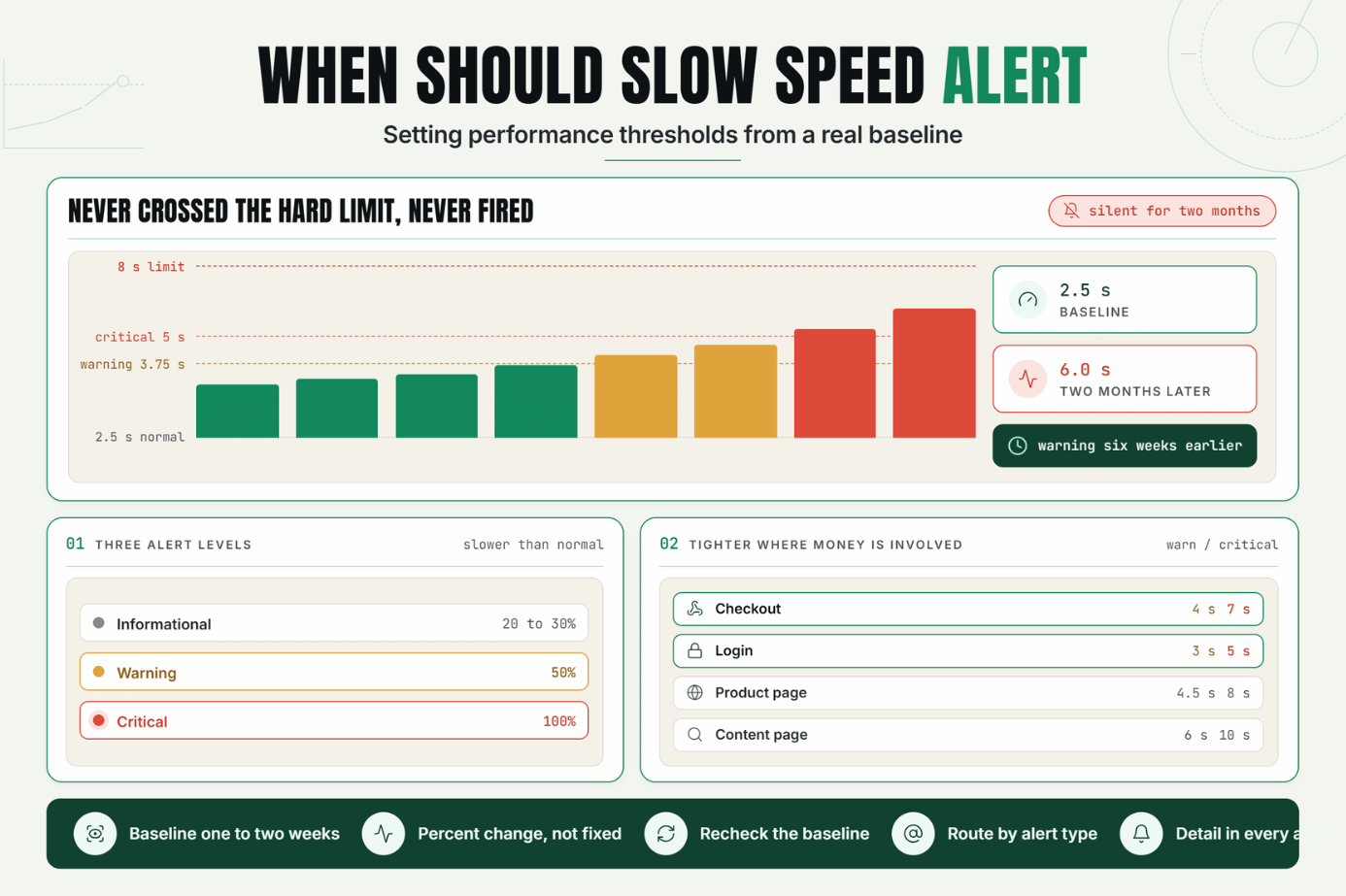
A software company sets one hard rule for their dashboard page: send an alert if the page takes more than 8 seconds to load. For months, nothing happens. Meanwhile, customer support slowly starts getting more messages saying the dashboard "feels slow."
When the team finally checks their old data, they find the load time has slowly gone from 2.5 seconds to 6 seconds over two months. It was always under their 8 second limit, but it was nearly two and a half times slower than normal the whole time.
They switch to a system with more than one level. A warning level at 50% slower than normal (3.75 seconds), and a critical level at 100% slower than normal (5 seconds). If they had used this system from the start, the warning would have gone off more than six weeks earlier. That would have given them time to fix the problem long before customers started complaining.
Recommended Monitor Setup
- Watch each important page for one to two weeks before setting any thresholds.
- Use more than one alert level (informational, warning, critical) instead of just one hard line.
- Set thresholds based on percentage change from normal, not just a fixed number.
- Use tighter thresholds for pages tied to money, like checkout and login.
- Check your baseline again from time to time, since normal performance changes as your site changes.
- Make sure every alert includes enough detail (which page, which number, how far off) to make checking it quick.
Best Practices for Setting Meaningful Thresholds
Use Real Data, Not Guesses
Look at your website's real past performance before deciding where a threshold should be. A number that is not based on your site's real behavior will either go off too often or never go off at all.
Use Percentages Instead of Fixed Numbers
A threshold based on "how much slower than normal" works better over time than a fixed number. It keeps working even as your traffic and systems change.
Use More Than One Alert Level
Not every small change needs to wake someone up. Save urgent alerts for the most serious problems, and let smaller changes just get logged for later review.
Use Stricter Limits Where Money Is Involved
Checkout and login pages need tighter thresholds than a blog post or a marketing page, because a slowdown there costs you more, right away.
Decide Who Handles Each Type of Alert
Decide ahead of time who responds to a warning alert versus a critical alert. Not knowing who should respond is one of the most common reasons alerts get ignored.
Check Your Baseline Again Regularly
Normal performance does not stay the same forever. As your website changes, your traffic grows, and you add new features, your baseline should be checked and updated too, instead of being set once and forgotten.
Common Mistakes in Performance Alerting
Mistake 1: Using the Same Threshold for Every Page
Why it happens: it is easier to set one rule for the whole website.
What to do instead: set thresholds based on how important each page is. Checkout and login need tighter limits than a general page.
Mistake 2: Using Fixed Numbers Instead of Percentages
Why it happens: a fixed number feels simpler to set up.
What to do instead: base your threshold on how far off it is from your normal baseline, so it stays useful even as normal performance changes.
Mistake 3: Only Having One Alert Level
Why it happens: one alert type is easier to build than a system with several levels.
What to do instead: use informational, warning, and critical levels, so small changes do not get treated the same as big, ongoing problems.
Mistake 4: Ignoring Things Outside Your Own Website
Why it happens: outside scripts, tools, and services are easy to forget about when setting thresholds.
What to do instead: include these outside services in your monitoring too, since a slow outside script can make your page cross a threshold on its own.
Mistake 5: Sending Every Alert to the Same Person
Why it happens: alerts often get set up quickly, without deciding who should handle each type.
What to do instead: send server related alerts to the team that handles servers, and page-related alerts to the team that handles the front end, so the right people see it first.
Mistake 6: Never Checking Thresholds Again After Setting Them
Why it happens: thresholds are usually set once at the start and then forgotten.
What to do instead: check your baselines and thresholds again from time to time, especially after big changes in traffic or new features.
Start Turning Performance Data Into Useful Alerts
Raw speed data is only useful if it turns into the right alert at the right time. Not too much noise, and not silence while things quietly get worse.
Start a 7 day Statixoup trial and set up alert levels based on your website's real normal performance. This way, your team gets alerts that actually mean something. The next time your site starts to slow down, you will catch it early, while it is still just a warning.