WordPress Uptime Monitoring: What to Check Beyond Homepage
A WordPress homepage can return a clean 200 status while logins fail, scheduled orders stop processing, and checkout spins forever. This blog explains why basic uptime checks miss these failures and walks through building real WordPress uptime monitoring: validating page content, testing login and WooCommerce checkout, tracking cron jobs, and setting performance baselines instead of one universal speed limit.
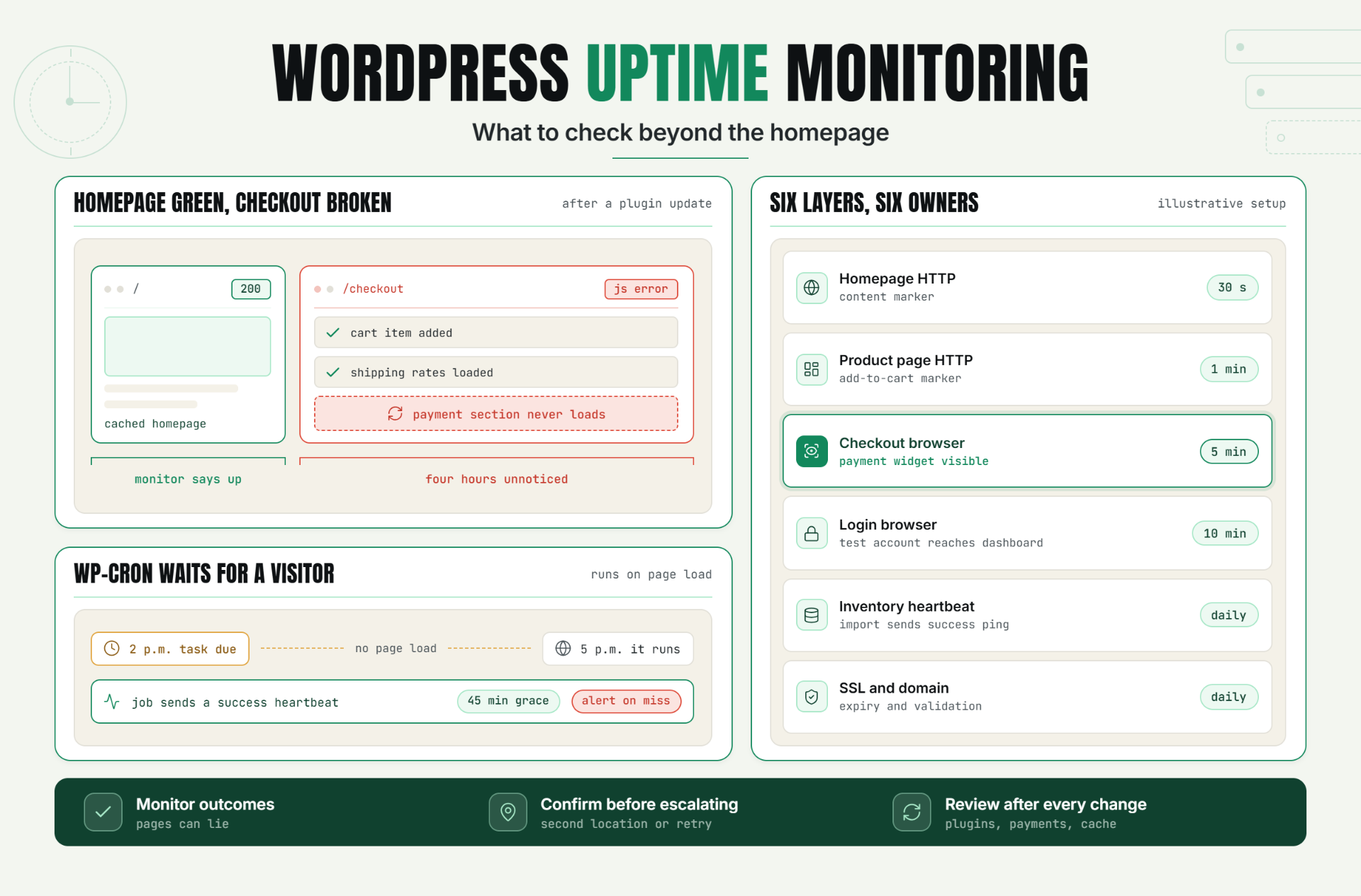
That’s the gap WordPress uptime monitoring needs to close. Statixoup checks websites as often as every 30 seconds and can validate more than basic availability, including browser journeys, SSL, performance, and scheduled jobs. For WordPress site owners and WooCommerce operators, the useful question isn’t “Is the homepage online?” It’s “Can a visitor complete the action that keeps this site valuable?”
WordPress uptime monitoring is a layered process that checks public pages, critical user journeys, background jobs, certificates, and performance from outside the hosting environment. A reliable WordPress uptime monitoring setup confirms that the site responds correctly, completes important actions, and alerts the right person when a layer fails.
W3Techs reported on August 21, 2026 that WordPress powered 40.7% of all websites and 58.9% of websites with a known content management system. A platform that broad attracts countless hosting setups, plugin combinations, and failure modes. One homepage probe can’t represent them.
The Homepage: Only Monitoring Problem
A WordPress owner usually discovers the limitation at the worst possible time. The monitor says “up,” but support messages say otherwise. A plugin conflict broke wp-login.php. A payment gateway callback failed. A cache served yesterday’s homepage while PHP workers were exhausted behind it.
The problem isn’t that the monitor lied. The WordPress uptime monitoring check answered a weak question.
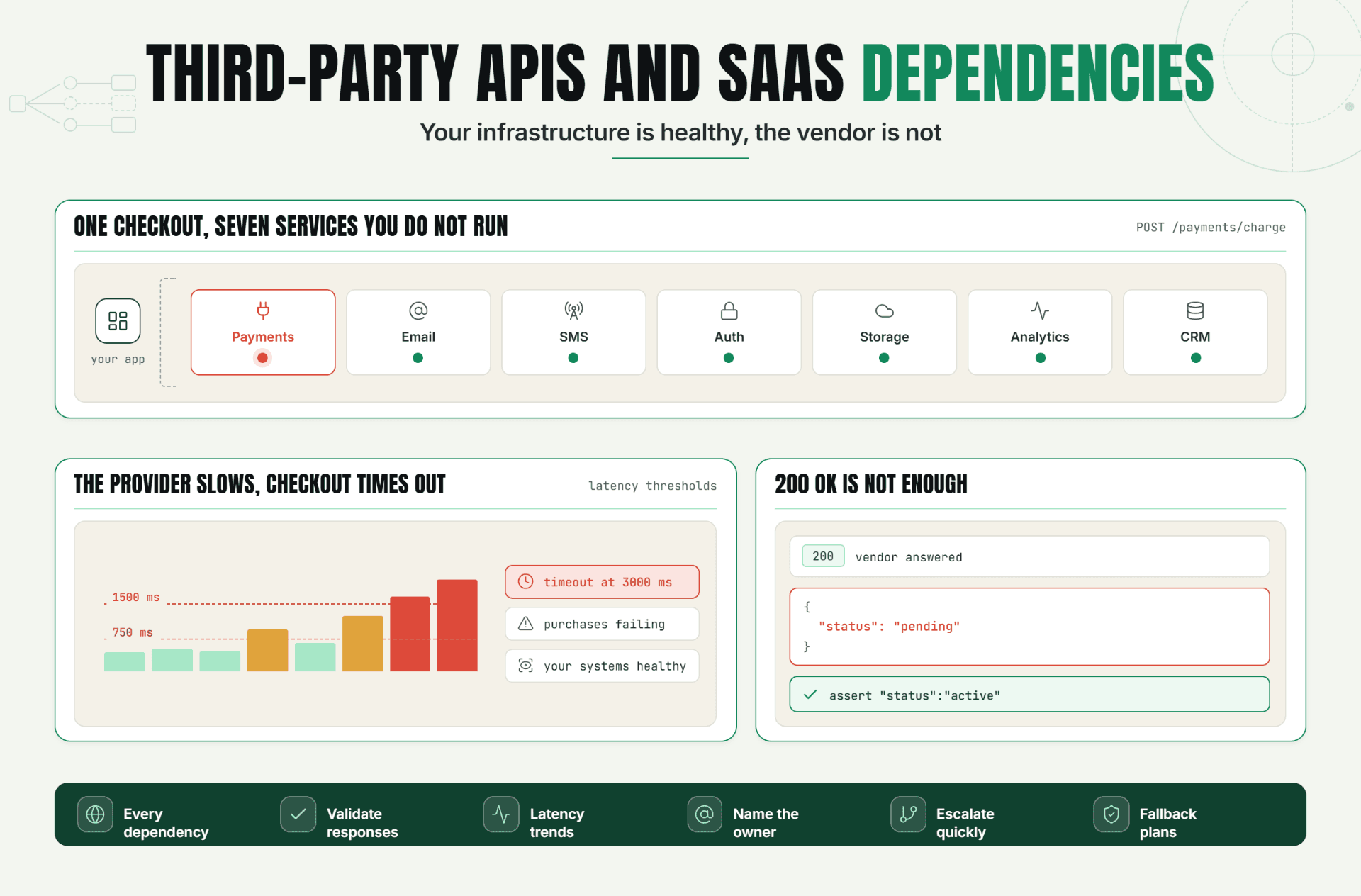
Basic WordPress uptime monitoring proves that one URL returned an acceptable response. It doesn’t prove that PHP executed correctly on uncached pages, the database answered, WP-Cron ran, an SSL certificate is healthy, or a buyer can pay. The Statixoup guide to monitoring JavaScript-heavy websites makes the same point from another angle: a successful HTTP response can still hide a broken user experience.
How WordPress Uptime Monitoring Works
Good WordPress uptime monitoring combines several independent signals. Each signal answers a different operational question, and the combination reduces blind spots without turning every small delay into an incident.
Start with HTTP checks, but validate the response
A WordPress uptime monitoring HTTP check should record status, response time, redirects, and expected content. Don’t stop at “200 OK.” A maintenance page or cached error can return 200 too.
For the homepage, validate a stable text marker such as the site name or a footer label. Add a second uncached or lightly cached URL, such as a product, category, contact, or account page. This gives WordPress website monitoring a better chance of exercising PHP and the database.
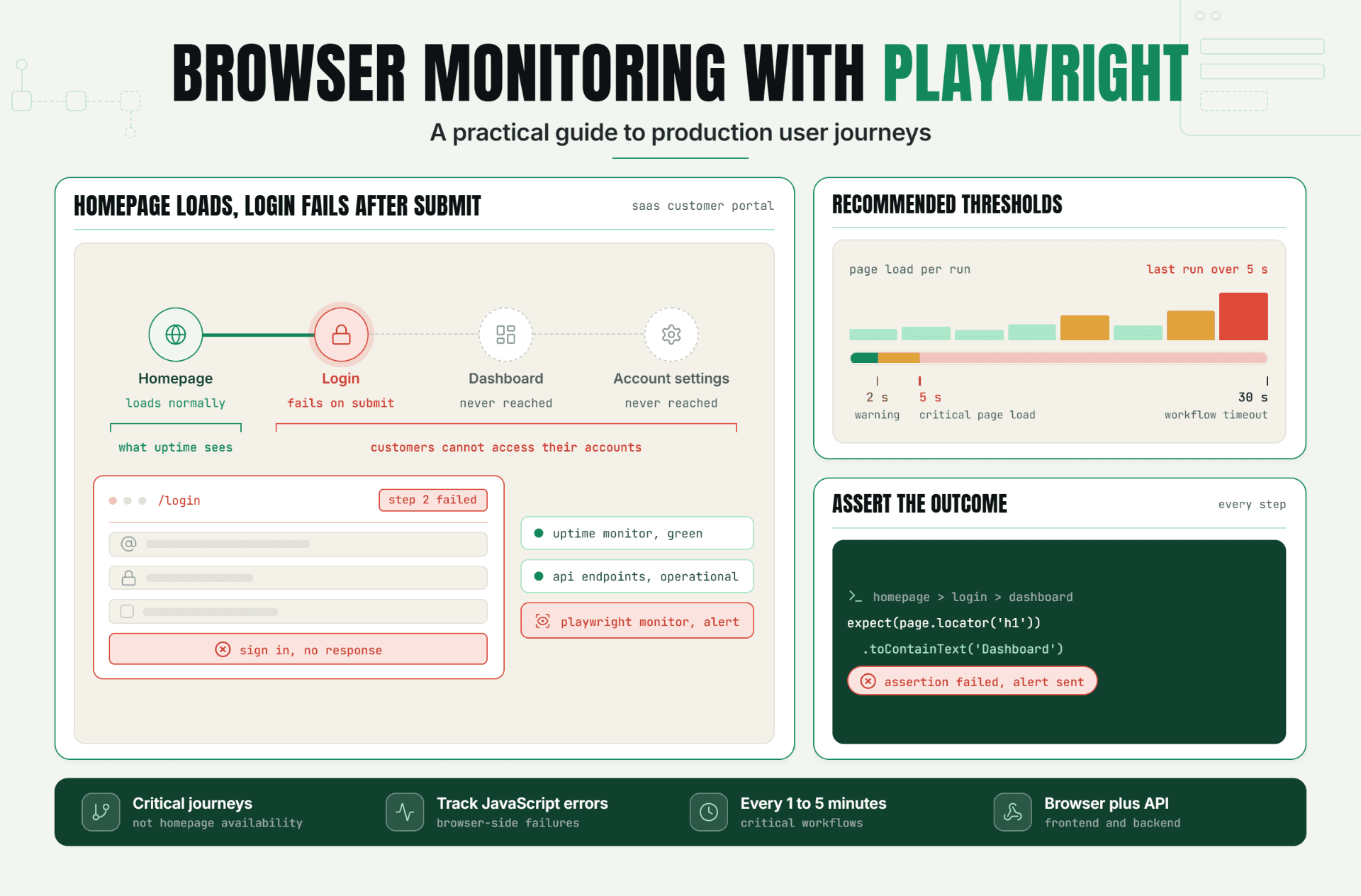
Set alert thresholds from the site’s observed baseline. If a page normally loads in 600 milliseconds, a five-second response deserves attention. If it normally takes 2.5 seconds, the same rule may create constant noise. Statixoup’s article on setting website performance alert thresholds explains why baselines beat one universal speed limit.
Google’s Core Web Vitals guidance gives useful user-experience reference points: good Largest Contentful Paint is within 2.5 seconds, Interaction to Next Paint is under 200 milliseconds, and Cumulative Layout Shift is below 0.1. Those aren’t outage thresholds by themselves. They do show why WordPress uptime monitoring should record performance instead of reducing health to a green or red dot.
Add login page monitoring without creating a security problem
The WordPress login page often reaches different code paths than the homepage. Monitoring /wp-login.php can expose PHP, database, security plugin, or web application firewall failures that a cached public page hides.
Login-focused WordPress uptime monitoring should check that the form loads, contains expected fields, and doesn’t return a server error or unexpected challenge. Avoid repeated logins unless you’ve created a protected, low-privilege test account.
When a browser check earns its keep
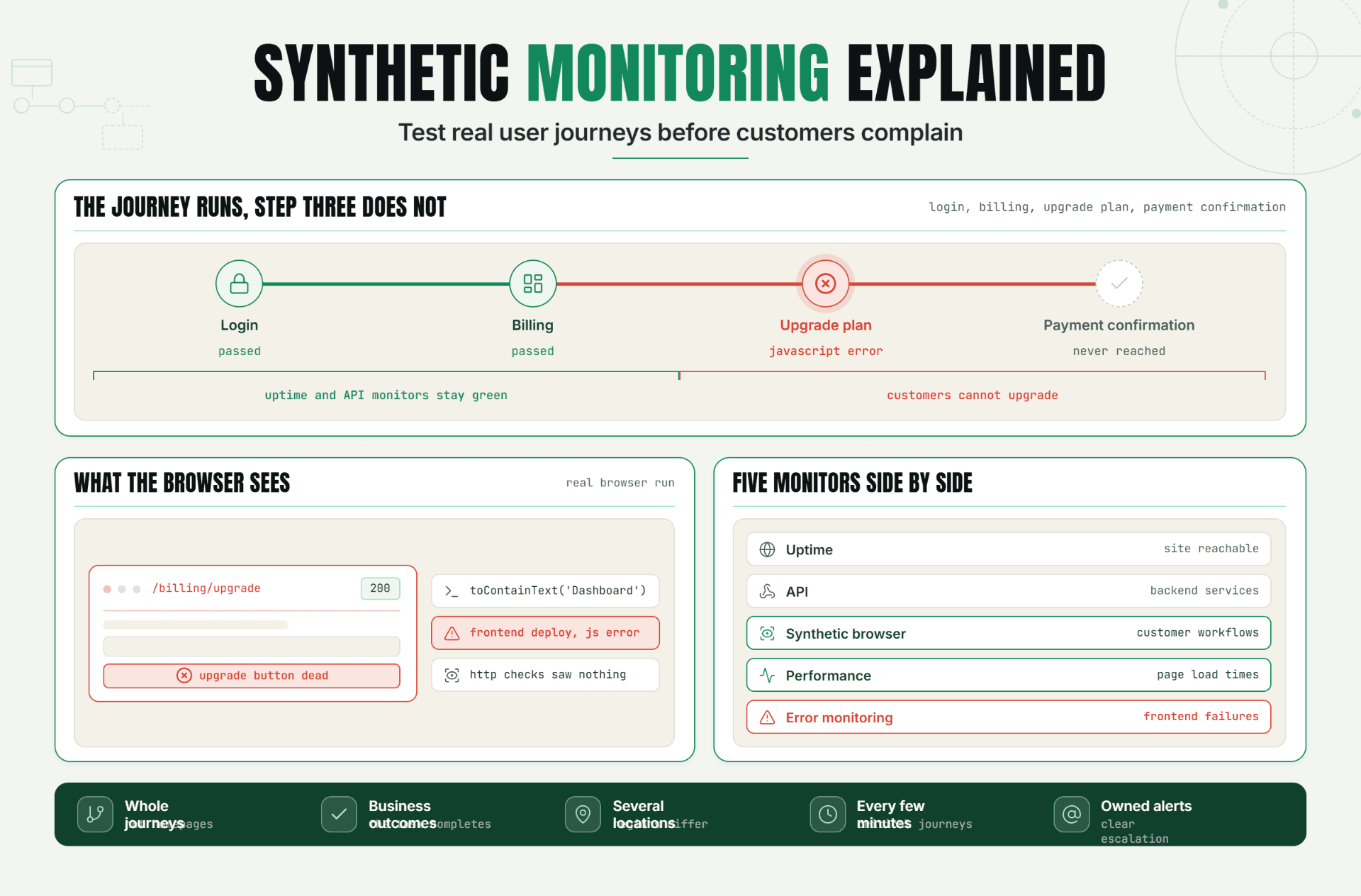
Use browser-based WordPress uptime monitoring when JavaScript, redirects, cookies, or security layers matter. A Chromium check can submit a controlled test account, confirm a dashboard marker, and sign out. It’s heavier than HTTP monitoring, so reserve it for a critical journey.
That’s my firm view: a browser check should prove one valuable outcome. Recording ten screenshots of ordinary page loads looks thorough, but it rarely shortens diagnosis.
Extend monitoring to WooCommerce transactions
For stores, WordPress uptime monitoring needs to follow the revenue path. A sensible WooCommerce journey opens a product, adds it to the cart, reaches checkout, and confirms that shipping and payment controls load. A sandbox flow can complete a test order too.
Why treat the store separately? W3Techs reported that WooCommerce appeared on 19.8% of WordPress sites in August 2026. WooCommerce itself says its marketplace includes more than 1,000 extensions. Every extension, payment method, tax service, stock integration, and cache exception adds another place where “homepage up” can coexist with “store unusable.”
Keep production tests non-destructive. Don’t create live paid orders every minute. Use a dedicated test product, payment sandbox, controlled coupon, or a journey that stops after validating checkout controls. The monitor should find broken commerce, not create accounting cleanup.
Monitor WP-Cron and scheduled work
WordPress cron monitoring covers tasks visitors never see directly: scheduled publishing, email queues, subscription renewals, inventory syncs, backups, cache cleanup, and plugin maintenance.
The official WordPress Plugin Handbook explains that WP-Cron checks for due work on page load instead of running continuously. A 2 p.m. task may wait until a 5 p.m. page load. WordPress provides four default intervals: hourly, twice daily, daily, and weekly.
So how should WordPress uptime monitoring verify cron health?
- Identify the jobs whose delay affects customers or revenue.
- Have each critical job send a heartbeat after successful completion.
- Set a grace period longer than the normal schedule and expected runtime.
- Alert only when the heartbeat misses that window.
- Route the alert to the person who can inspect the job, queue, or plugin.
The result is outcome-based WordPress uptime monitoring for cron. You’re checking that the work finished, not merely that wp-cron.php responded.
Cover SSL, DNS, domain, and external dependencies
SSL monitoring should warn before expiry and detect validation problems. DNS monitoring should catch record or nameserver changes. Domain monitoring should flag approaching renewal dates. These checks belong beside WordPress uptime monitoring because visitors experience all of them as “the website is broken.”
Add dependency checks to WordPress uptime monitoring for services the site can’t operate without. For WooCommerce, that may include payment, tax, shipping, and inventory endpoints. Alert when a failure blocks your customer journey.
The Statixoup DNS monitoring guide is useful when separating server health from DNS failures. And when one region reports a problem that another can’t reproduce, multi-location uptime monitoring helps distinguish a local connection issue from a regional outage.
Choose check frequency by business impact
There isn’t one perfect interval. A 30-second check can detect a revenue-critical failure faster than a five-minute check, but it also produces more data and may cost more. A brochure site can usually tolerate slower checks. A busy checkout can’t.
Use this WordPress uptime monitoring rule: check every 30 to 60 seconds when a failure can lose orders or block sign-ins within minutes. Use two to five minutes when impact builds slowly. Run heavier browser journeys less often beside a lightweight HTTP check.
Statixoup compares the tradeoffs in its guide to 30-second, one-minute, and five-minute website checks. Pair frequency with confirmation from another location or a second check before paging someone. Fast detection is useful. Fast false alarms aren’t.
A Realistic WooCommerce Monitor Setup
Consider this illustrative example. An agency manages a WordPress store with a cached homepage, 2,500 products, Stripe, a shipping-rate API, nightly inventory imports, and subscription renewals.
Its old monitor requested / every five minutes. One afternoon, a plugin update caused a JavaScript error on checkout. The homepage stayed green for four hours. Visitors could browse products and add items to carts, but the payment section never loaded.
The agency replaces that single check with a layered WordPress uptime monitoring plan:
| Monitor | Check | Frequency | Alert condition | Owner |
|---|---|---|---|---|
| Homepage HTTP | Status, content marker, response time | 30 seconds | Two confirmed failures | Hosting/on-call |
| Product page HTTP | Product title and add-to-cart marker | 1 minute | Marker missing or 5xx | WordPress developer |
| Checkout browser | Product to checkout, payment widget visible | 5 minutes | Journey fails twice | Ecommerce team |
| Login browser | Test account can reach dashboard | 10 minutes | Login flow fails twice | Site administrator |
| Inventory heartbeat | Import sends success ping | Daily | No ping within 45-minute grace period | Operations |
| SSL and domain | Expiry and validation | Daily | Renewal window or invalid certificate | Agency owner |
The next checkout failure is detected even while the homepage remains available. The WordPress uptime monitoring alert names the failed step, so the developer starts at the payment widget instead of testing blindly.
This isn’t a claimed client result. It’s a production pattern built from common WordPress failure modes. The important change is the monitoring question: from “Did one URL answer?” to “Did each critical outcome complete?”
Best Practices for WordPress Website Monitoring
Monitor outcomes because pages can lie
WordPress uptime monitoring should check content markers, form controls, completed browser steps, and heartbeats. A status code proves a response, not a working site.
Use different frequencies for different risks
Run lightweight availability checks often. Run login and checkout journeys often enough to protect the business, but not so often that they create load, lockouts, duplicate records, or messy analytics.
Confirm before escalating
Use a second location or rapid retry before creating a high-severity incident. This keeps WordPress uptime monitoring responsive without waking someone for a transient network error. Statixoup’s guide to reducing false positive alerts covers this balance in more detail.
Assign ownership before the first failure
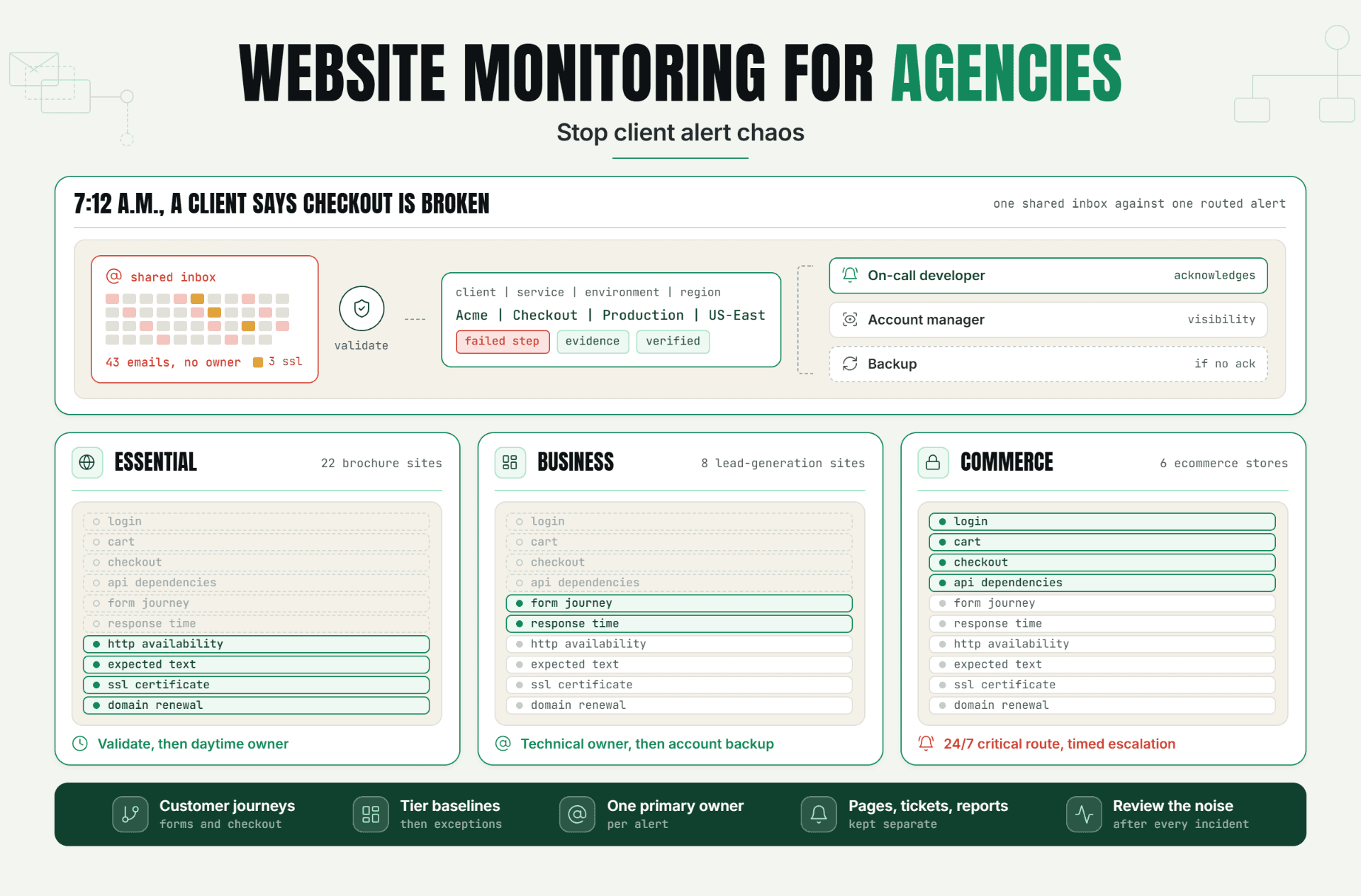
Define who handles hosting errors, plugin failures, checkout issues, missed jobs, certificates, and DNS. Then test the routing. A technically accurate alert that reaches nobody is still operationally useless.
Review coverage after every meaningful site change
New plugins, payment methods, membership flows, cache rules, CDN changes, and hosting migrations can invalidate old checks. Review WordPress uptime monitoring quarterly and immediately after high-risk releases.
Common Mistakes That Leave WordPress Blind Spots
Mistake 1: Checking only the homepage
Homepage-only WordPress uptime monitoring is easy, but rarely representative. Add one uncached page and one critical journey.
Mistake 2: Treating every slow response as downtime
This creates alert fatigue. Separate availability incidents from performance warnings, then set thresholds against observed baselines.
Mistake 3: Pinging `wp-cron.php` and calling cron healthy
That endpoint responding doesn’t prove a scheduled task completed. Use job-level heartbeats with realistic grace periods.
Mistake 4: Running unsafe synthetic purchases
Production tests can create orders, trigger emails, reserve stock, and distort reports. Use sandbox payments or stop after validating the payment interface unless a controlled end-to-end order is genuinely required.
Mistake 5: Sending every alert to one inbox
The inbox becomes a graveyard. Route high-impact alerts by component and severity, and use the Statixoup incident alert routing guide to define escalation when the first owner doesn’t respond.
Conclusion
The homepage is a starting point, not a definition of health. WordPress uptime monitoring becomes useful when it follows the parts of the site that customers and operations actually depend on: login, checkout, scheduled work, certificates, DNS, and performance.
Start with one critical journey and one critical background job. Add them beside the homepage check, assign an owner, then force a safe test failure. If the alert arrives with enough evidence to act, your monitoring is doing its job.
Start a 30-Day Statixoup Trial
Set up WordPress uptime monitoring with Statixoup and start with the layer most likely to hurt when it fails. Add the homepage, a critical page, one browser journey, and a heartbeat for your most important scheduled job. Then configure the right alert owner and test the workflow.
Start your free 30-day Statixoup trial and build monitoring around real WordPress outcomes, not one green homepage.
Post a Comment

Hardik Vaghani
Hardik Vaghani is a Digital Marketing Professional and SEO Strategist based in Surat, Gujarat, India. He currently works with Ethnic Infotech, contributing to SEO, content marketing, technical SEO, and digital growth strategies. Hardik also creates blog content for Fusion5, focusing on technology, laptops, and consumer electronics. With expertise in SEO, Google Ads, Meta Ads, Local SEO, and Content Strategy, he helps businesses improve online visibility, rankings, and lead generation through data-driven marketing.
Frequently Asked Questions
Related Blogs